PRRO in ERP-CRM: the first stage works on a test site
ua_prro is an ERPNext app for the Ukrainian software cash register (PRRO). This article describes its first stage: what the app does, what a cashier does with it and how a document goes. The examples and the screenshots use fictional data.
What was built
The app issues receipts from Sales Invoices. It keeps the shifts of a cash register, sends each document to a server, records the answer and prints receipts and Z-reports. Receipts are produced by a simulator of the fiscal server; they are not registered with the tax service. The app goes through the whole flow.
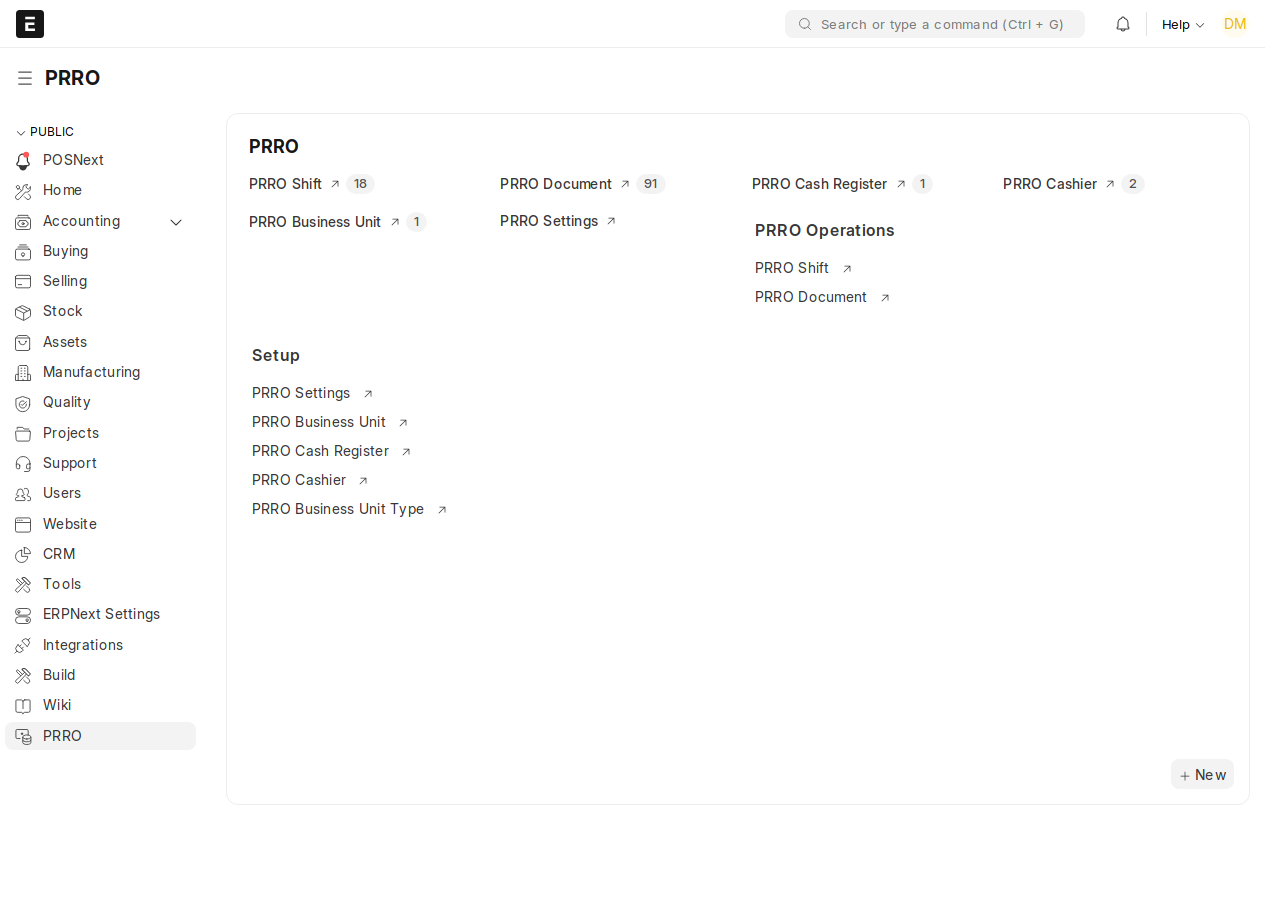
The first stage holds:
- a cash register, a business unit and a cashier, with the roles PRRO Manager and PRRO Cashier;
- opening and closing a shift, with a Z-report;
- fiscalizing a Sales Invoice: a flag on the invoice and the button "Fiscalize";
- the statuses of a document and what to do with each of them;
- printing of receipts for 80 and 58 mm paper, of the Z-report, and a PDF;
- cash rounding to a step of 0.10 or 0.50 UAH.
The receipt is made from the Sales Invoice itself, so the cashier does not type the sale again in a separate program. The flag on the invoice is off by default and an invoice is fiscalized when it carries the flag. Automatic fiscalization of POS Next sales came later for a POS Profile that turns it on, and it too is off by default: Sell in POS Next.
Who works with it
- An accountant or an administrator sets the register up: the company details, the items and the modes of payment, a business unit (a point of sale), a cash register and a cashier. A register is added when the company has the Default Cash Account. The cashier record holds a reference to a key in a signing service (the Signer Key ID).
- A cashier opens and closes shifts, fiscalizes invoices and prints. A user has at most one enabled cashier record in a company.
- A PRRO Manager tests the connection to the server, syncs the register and resolves documents whose outcome is not known. Syncing a register and resolving a document also need the manager to have an enabled cashier record in the company.
Before the first receipt the manager presses "Test Connection" in PRRO Settings and "Sync with the Fiscal Server" on the cash register: the first checks that the server (here, the simulator) answers, the second takes the next local number from it.
What a cashier does in five steps
- Open a shift on the cash register with the button "Open Shift".
- Create a Sales Invoice with Include Payment (POS) turned on and one payment row, and turn on the flag "Fiscalize (PRRO)".
- Submit the invoice and press "Fiscalize".
- Read the PRRO status of the invoice. The button "PRRO Document" opens the document, and the receipt can be printed.
- At the end of the day press "Close Shift" and print the Z-report.
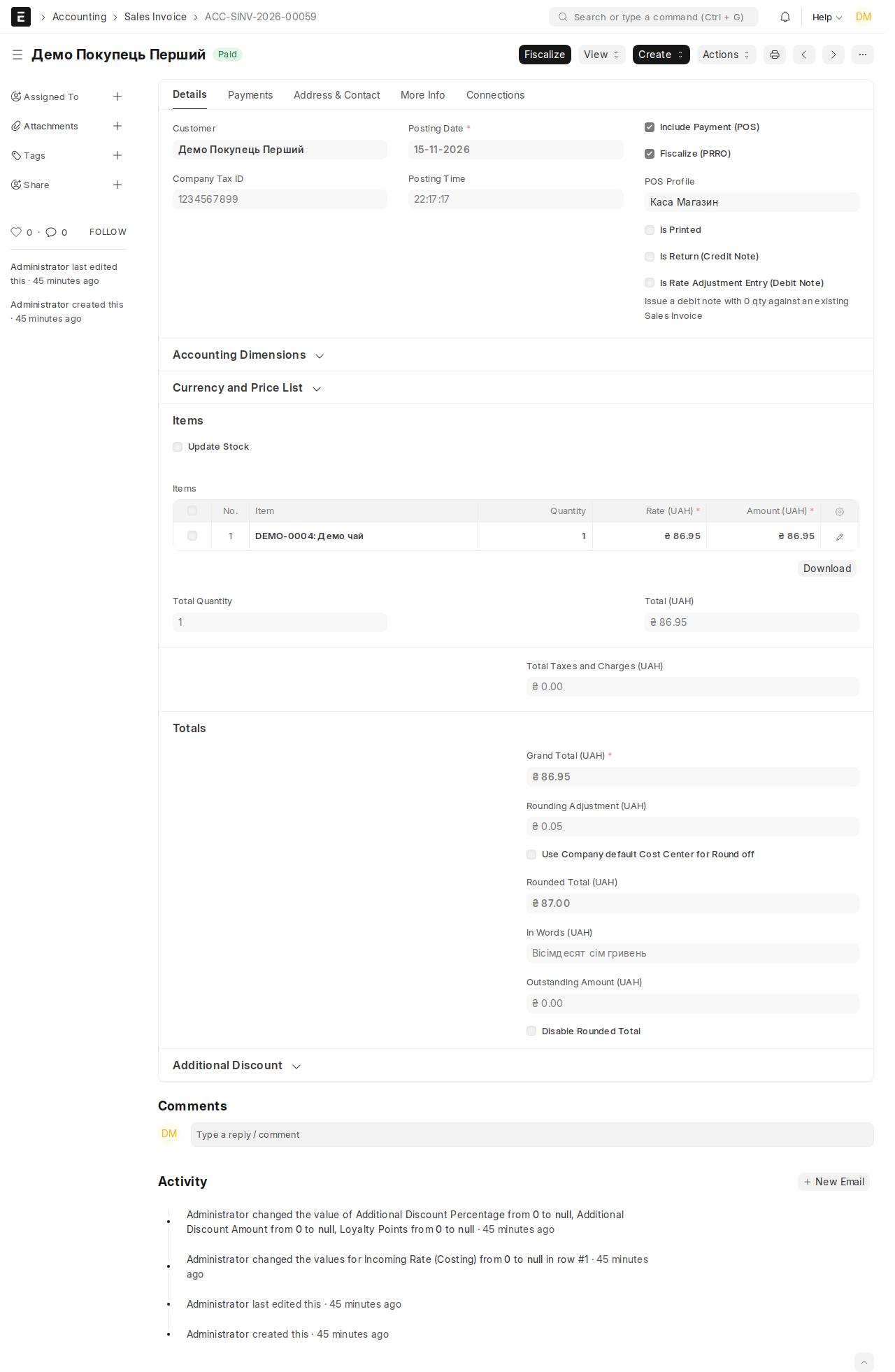
Before it sends anything, the app checks the invoice, the company and the register again. When a check fails, the invoice is not submitted, and the message says what to change. Pressing "Fiscalize" a second time returns the same document.
What happens to a document
A document goes through the statuses Draft, Signed, Sent and Accepted. Accepted, Rejected and Failed are final; for Unknown a manager resolves the document: the app asks the server about its local number. When a document is rejected or fails, the invoice can be fiscalized again with a new document.
Cancelling or deleting an invoice that has a document shows an orange warning. An accepted receipt stays registered: to correct it a return receipt is issued (Returns and the return receipt).
Transport and signing
The transport is a fiscal server simulator, and documents are signed by the signature stub. The cashier record holds a reference to a key in the signing service.
The names, amounts and numbers in the screenshots are fictional.
What came next
- Return receipts and service receipts: Returns and the return receipt and Service deposit and withdrawal.
- Automatic fiscalization of POS Next sales for a POS Profile that has it on: Sell in POS Next.
- The X-report of an open shift: X-report.
What this means
The app goes through the whole process: the setup of the company, the cash register and the cashier, opening a shift, fiscalizing a Sales Invoice, the statuses of a document, printing a receipt and the Z-report. With this process the setup can be checked and cashiers can be trained.
More in the documentation: What ua_prro does and The first fiscalization in 10 steps.