Sell in POS Next with automatic fiscalization
Who it is for: an administrator who sets up the POS Profile, and a PRRO Cashier. Result: a sale or a return in POS Next goes to the fiscal server at once, and the cashier sees the outcome in the sale-complete dialog. Conditions: the option belongs to the POS Profile and is off by default. Scenario: the main one. Fiscalizing the payment of a Sales Invoice is an additional scenario (Fiscalize a Sales Invoice).
Receipts are produced by a simulator of the fiscal server; they are not registered with the tax service.
Setting up the POS Profile
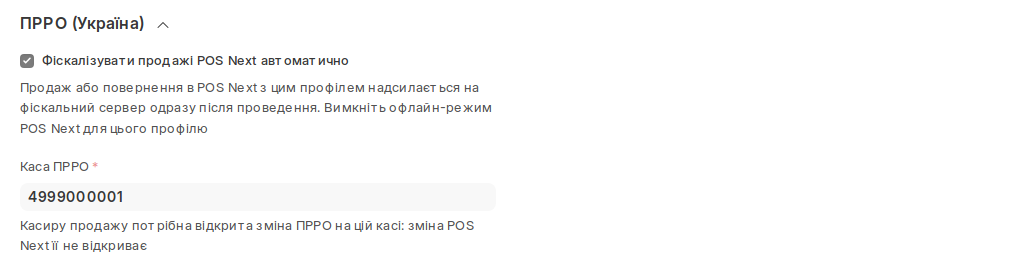
A POS Profile has a section "PRRO (Ukraine)" with two fields:
| Field | Meaning |
|---|---|
| Fiscalize POS Next Sales Automatically | off by default; when it is on, every sale and return with this profile is fiscalized right after it is submitted |
| PRRO Cash Register | the PRRO on which the sales of the profile are fiscalized; required when the option is on; it must be an enabled PRRO of the same company |
The option belongs to the profile and is the same for all its users. A profile with the option off works as before: POS Next submits the sale and the cashier fiscalizes it with the button "Fiscalize" on the invoice (Fiscalize a Sales Invoice). Turning the option off is the first step back to that mode.
What else a sale needs:
- the user is listed in the POS Profile Users;
- the user has a PRRO Cashier record in the company of the profile (Business unit, PRRO and cashier) and may submit invoices;
- the user has an open PRRO shift on the PRRO of the profile. The POS Next shift and the PRRO shift are two separate shifts.
After the option or the rounding step changes, reload the POS Next page: it reads the profile data once, when it loads.
Steps for the cashier
- In ERP-CRM open the PRRO of the profile and press "Open Shift" (Open a PRRO shift).
- Open POS Next (the address
/pos), choose the profile and open the POS Next shift as usual. - Add the items and go to the payment. Automatic fiscalization needs one mode of payment for the whole amount.
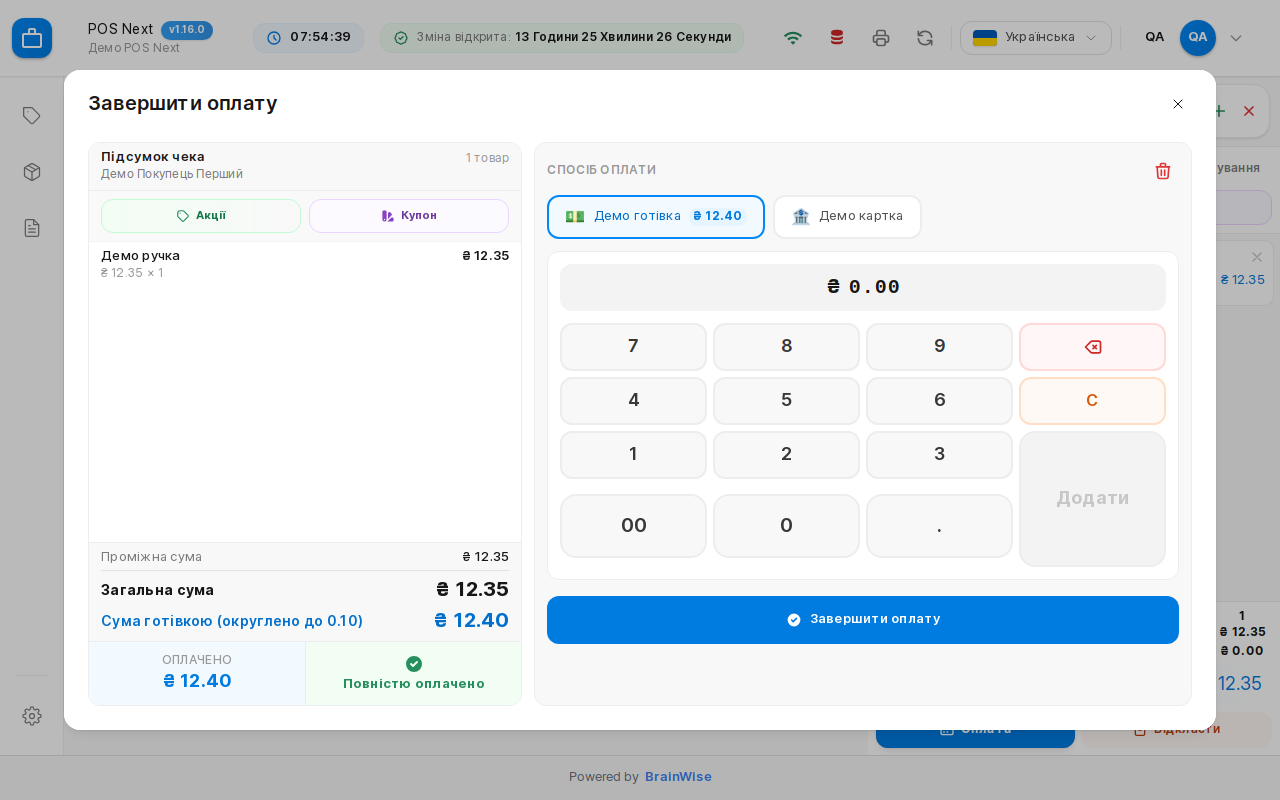
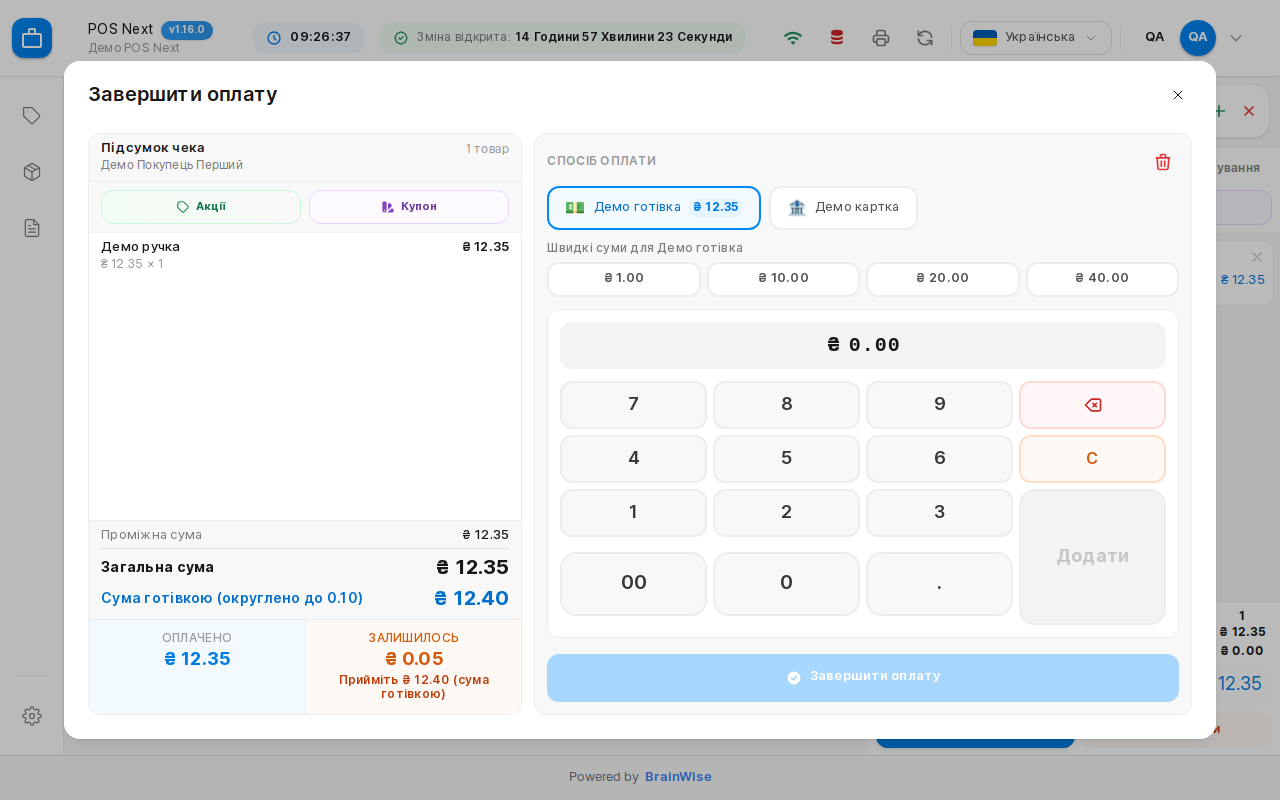
- For cash enter the rounded amount shown by the line "Cash total (rounded to 0.10)": for a sale of 12.35 it is 12.40. The numeric keypad adds the amounts together, so clear the previous amount with the button "C" first and then type 12.40. If you enter exactly 12.35, the dialog keeps "Remaining 0.05" with an orange line "Accept 12.40 (cash total)" and the button "Complete payment" is disabled. When 12.40 is entered, "Fully paid" appears.
- Complete the sale. The sale-complete dialog shows the outcome (below).
- Give the customer the receipt and the change shown in the dialog.
A sale needs an open shift on the PRRO of the profile; with a closed shift it is refused before any invoice is made, with the message "Open a PRRO shift of cash register ... first".
What the cashier sees
For cash, the payment dialog shows a line "Cash total (rounded to 0.10)" under the grand total. The cashier takes this amount, and the dialog computes the change from it: 20.00 paid for a sale of 12.35 gives a change of 7.60.
The sale-complete dialog shows:
- "Change to hand over" in large figures and the "Receipt total"; when the change is zero, "No change" is shown in place of the amount;
- "Fiscal receipt registered" and "Fiscal number"; a test receipt carries the mark "Test receipt";
- when the receipt was not registered, a red panel "Fiscal receipt not registered" with the text of the error, the line "The sale ... is saved." and the button "Fiscalize again". The button follows the rules of the button "Fiscalize": it needs a PRRO Cashier of the company with an own open shift.
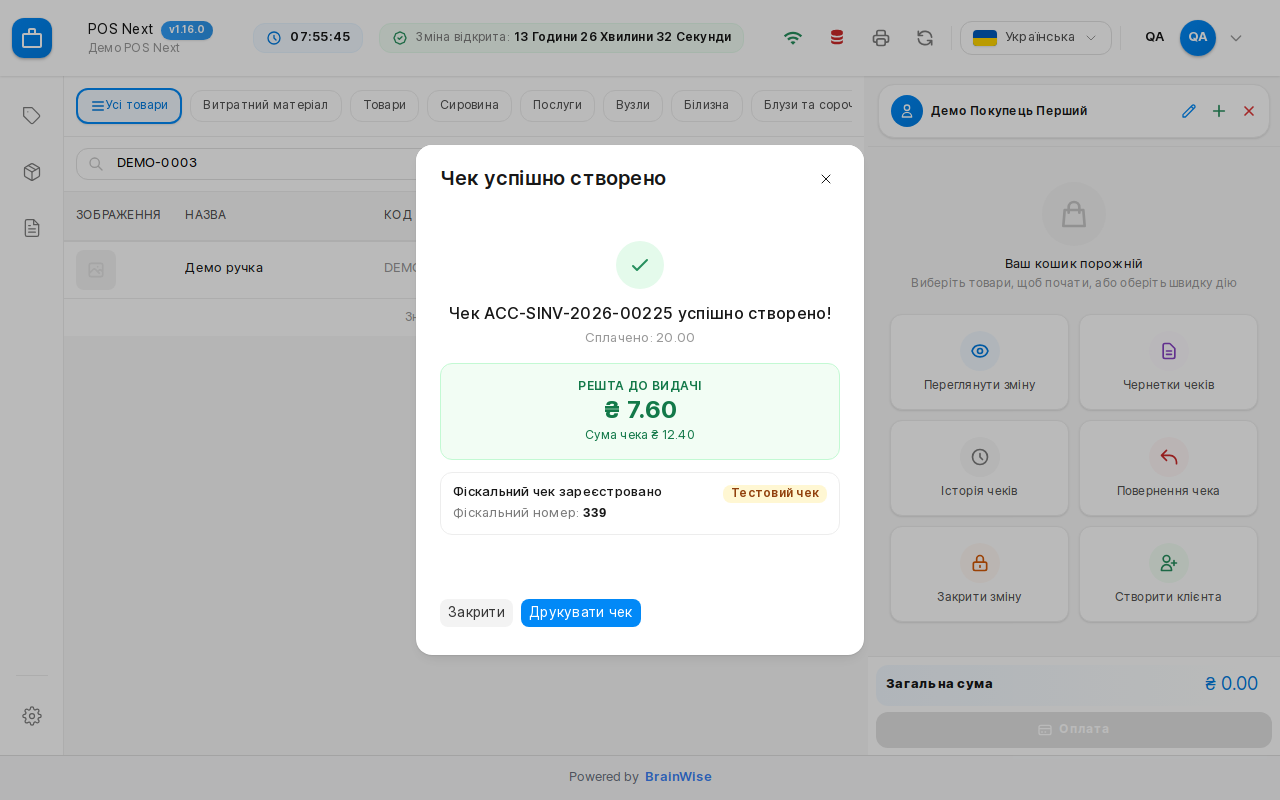
The dialog shows the fiscal outcome itself. For a card payment the amount paid equals the grand total. These texts are shown by POS Next with the ERP-CRM changes. In a build of POS Next without them the sale is still fiscalized, but the cashier sees only the sale: the outcome is then in the invoice, and the report of unfiscalized invoices warns about sales that were not fiscalized.
Cash rounding
The rule is the one of the Sales Invoice: Cash rounding. In POS Next:
- the main cart screen shows the exact total, and the payment dialog shows the rounded cash total;
- the receipt carries the rounded amount: 12.35 gives 12.40 and 12.34 gives 12.30; the amount of a card payment stays exact;
- the amount paid must be at least the rounded total (12.40): the exact 12.35 leaves "Remaining 0.05" and the line "Accept 12.40 (cash total)", and "Complete payment" is disabled; a larger amount is accepted and the change is computed from the rounded total.
Returns
A return made in POS Next with an automatic profile creates a return receipt under the rules of Returns and the return receipt. In the return dialog of POS Next a line "Cash to hand back (rounded to 0.10)" stands under "Return amount": for a return of 12.34 it shows 12.30, for 12.35 it shows 12.40. The fields "Total to return" and "Total payment" still show the unrounded amount. Hand the customer the amount of the line "Cash to hand back": the return receipt carries the same rounded amount.
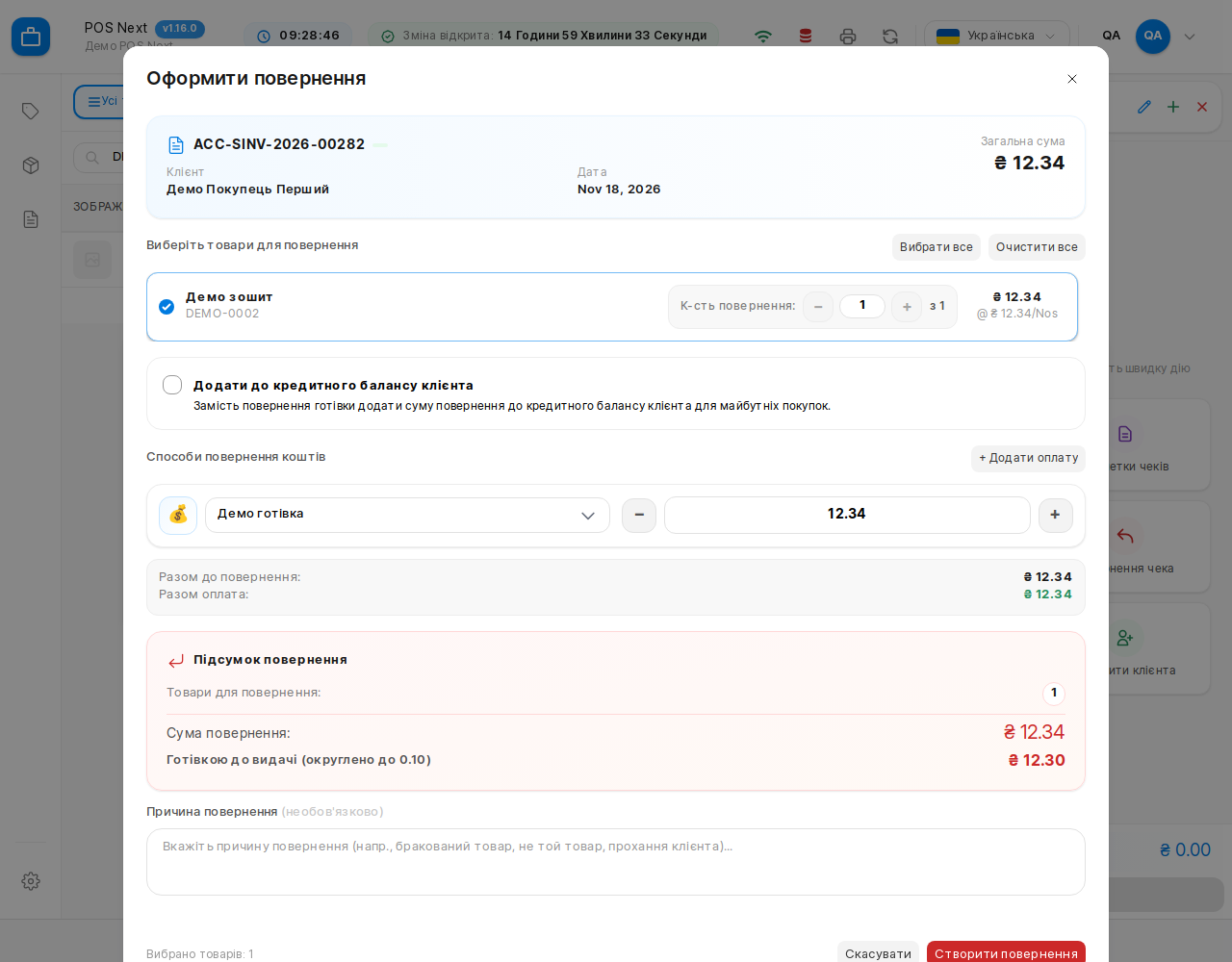
After a return two notifications appear one after another, the fiscal one first. For a sale made before the option was turned on, the dialog shows the message "The returned sale has no fiscal receipt here: this return is not fiscalized (a PRRO Manager makes it from the invoice if it must be)", and the status of the block is Skipped.
Errors and what to do
| Message | Cause | What to do |
|---|---|---|
| Open a PRRO shift of cash register ... first: cashier ... has no open shift there | no PRRO shift on the PRRO of the profile | open the PRRO shift on that PRRO and sell again |
| User ... is not an enabled cashier of the company | no PRRO Cashier record | ask an administrator to add the cashier |
| Set the PRRO Cash Register of POS Profile ... | the option is on and no PRRO is set | set the PRRO in the profile |
| The paid amount ... is less than the rounded total ...: take ... from the customer | an amount between the exact and the rounded total | enter the rounded amount |
| Offline invoice refused | the invoice came from the browser queue | turn the offline mode of POS Next off for the profile (see "The offline mode and the shifts" below) |
| The line "Accept 12.40 (cash total)" and a disabled "Complete payment" | the amount entered is less than the rounded one (for example 12.35 instead of 12.40) | clear the amount with "C" and enter the rounded one |
| Fiscal receipt not registered | the reason is named in the text of the error of the panel | "Fiscalize again"; if that fails, fiscalize from the invoice (Statuses and what to do) |
| Unknown outcome | the outcome is set by resolving the document | a PRRO Manager resolves the document (Resolve a document) |
POS Next shows validation errors as separate sentences, for example: "A card payment must equal the grand total 12.35. The invoice must be paid in full: outstanding amount -0.05." The same text also appears as a notification. The error dialog still shows a technical line "Type: ValidationError": only the text of the message matters. The button "Try again" reopens the payment dialog so that the cashier can correct the amount.
A sale whose receipt was not registered stays submitted, and the receipt is issued for the same sale: a new sale would make a second invoice. The failed attempt is visible in the invoice (PRRO status and document), and a sale that waits for its first attempt is in the report Unfiscalized flagged invoices.
The discount on the total
The discount on the total of an invoice (an amount or a percentage) is distributed across the lines of the receipt in proportion to their amounts, in kopecks: every share is rounded down to a kopeck, and the kopecks still missing from the discount go to the lines with the largest fractional parts (on equal parts, to the line with the larger amount, then to the first one). The share is added to the discount of the line, so the discounts of the lines add up to the discount on the total, and the receipt carries the discount in its lines. The rule with an example: Pre-checks of a flagged invoice.
The app refuses a discount equal to the total of the lines or above it, a negative discount, a discount after which the amount to pay for a line is zero and a cash (non-trade) discount, which has a message of its own. The return of a sale with a discount on the total is the whole sale with the same discount (Returns and the return receipt).
What the app refuses
A sale is refused when it has a write-off, loyalty points, a wallet or credit payment, several modes of payment (a split payment) or a currency other than UAH. Discounts on the rows and the discount on the total are accepted.
Card payments
A card sale passes with the default settings (A card payment); a card payment is fiscalized in the same way whatever the value of the option "Allow Card Payments without Terminal Data" in PRRO Settings. For a card the amount paid equals the grand total and stays exact.
The offline mode and the shifts
An invoice from the browser queue (the offline mode) is refused at sync, because its receipt would carry the time of the sync. For a profile with the option, turn the offline mode of POS Next off. If a queue exists from before the option was turned on, turn the option off for the profile, sync the queue and turn it on again: those invoices wait for fiscalization, and the report of unfiscalized invoices lists them.
The POS Next shift and the PRRO shift are kept separately. All the features of the app: What ua_prro does.