Fiscalize a Sales Invoice
Who it is for: a PRRO Cashier. Result: a PRRO Document whose status shows the outcome, and a marker on the Sales Invoice. Returns: a return invoice is fiscalized the same way, by the rules of its own page (Returns and the return receipt). Scenario: an additional one, the payment of a Sales Invoice. The main scenario is a sale in POS Next (Sell in POS Next).
The flag
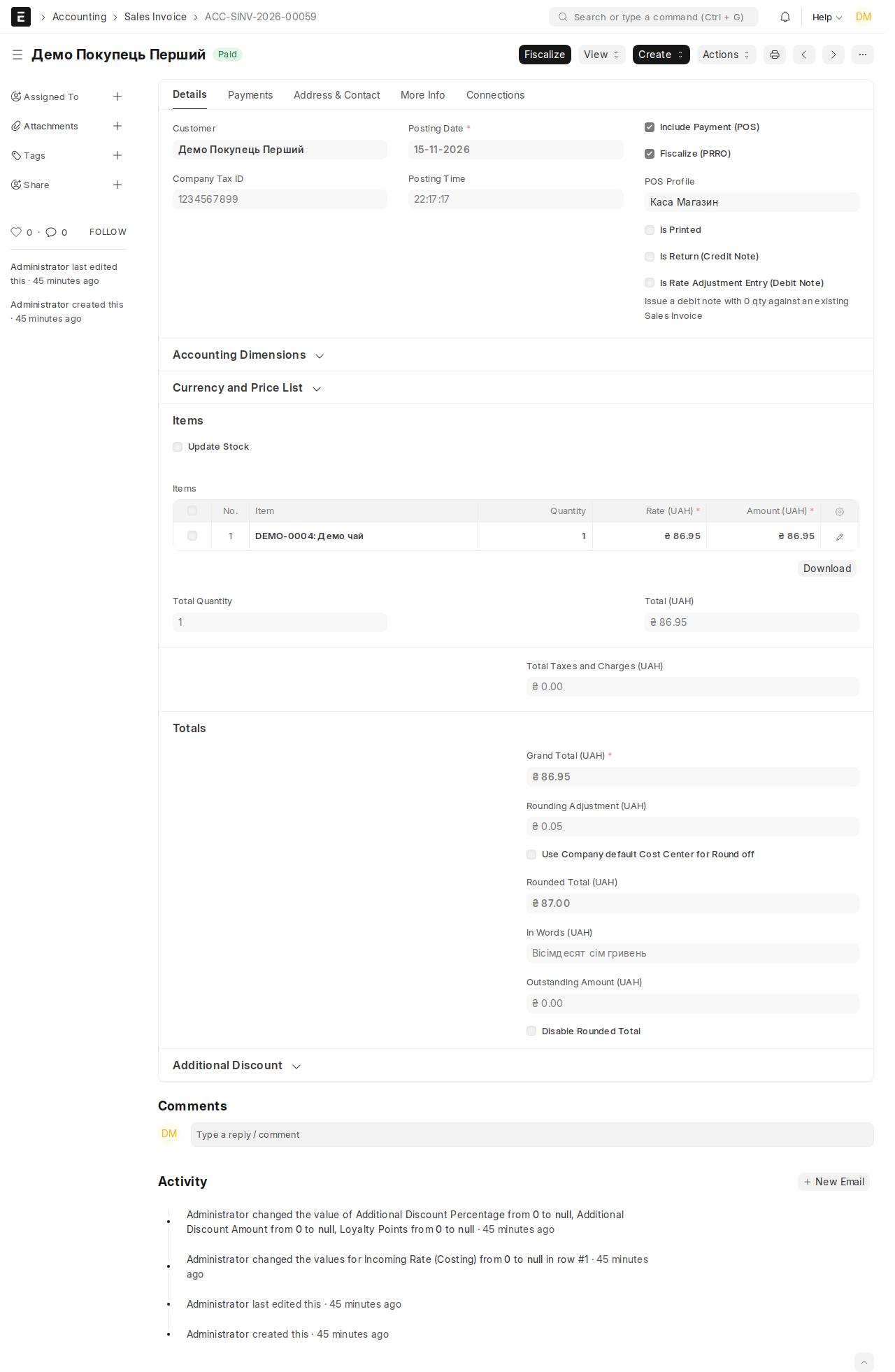
The flag "Fiscalize (PRRO)" is off by default: an invoice is fiscalized with the button. A sale in POS Next with a POS Profile that has automatic fiscalization on is fiscalized by the server right after it is submitted, within the POS Next call, and the button "Fiscalize" stays for the case of an error (Sell in POS Next). The flag is shown on a Sales Invoice with Include Payment (POS) of a company that has an enabled PRRO.
Steps
- Create a Sales Invoice with Include Payment (POS) and one payment row with an amount. Rows with a zero amount, which a POS Profile adds, do not count.
- Turn on "Fiscalize (PRRO)". For a card see A card payment.
- Submit the invoice. Any user who may submit invoices can do it. A draft always saves.
- Press "Fiscalize". The cashier must be an enabled cashier of the company, may submit the invoice and has an open PRRO shift.
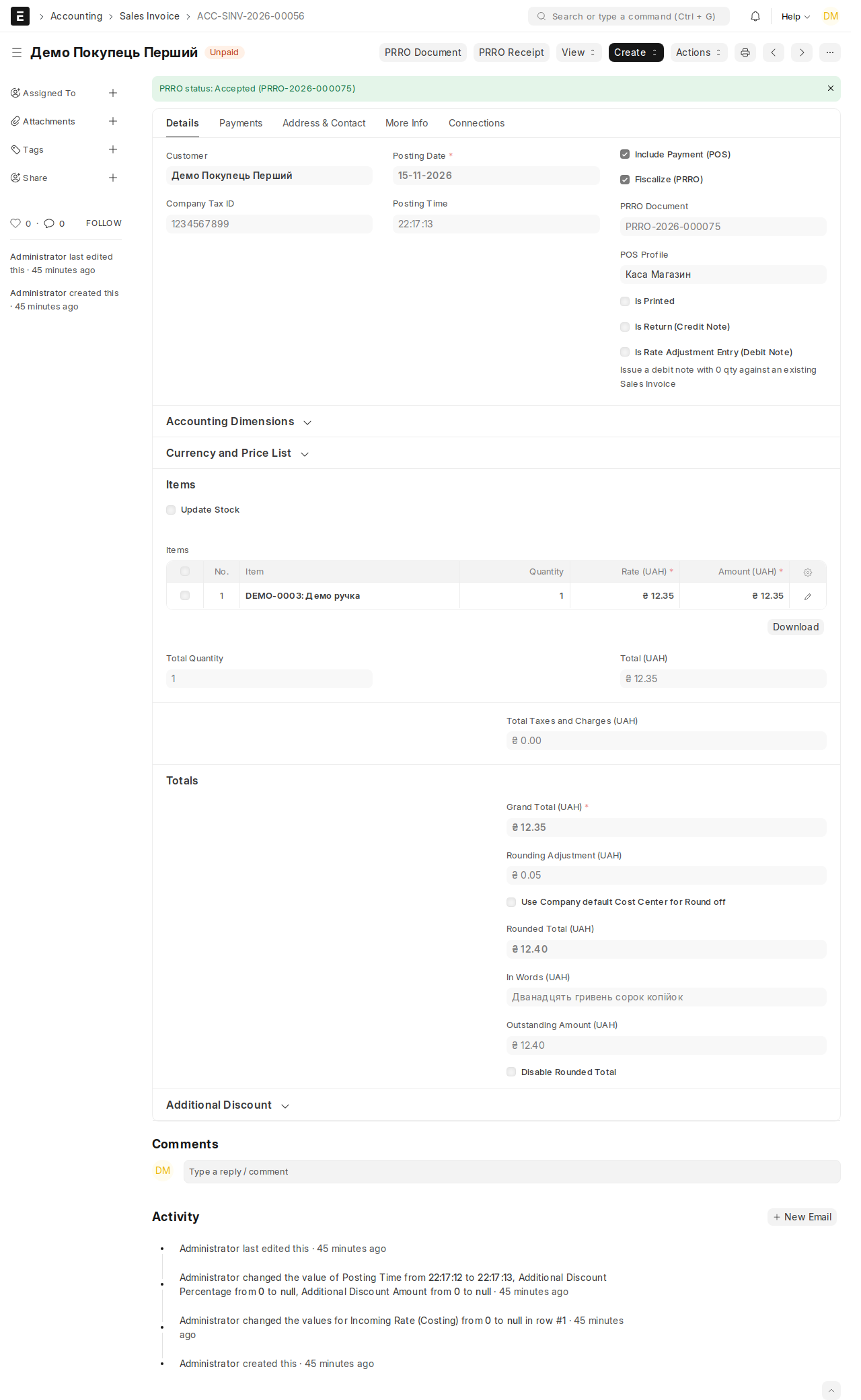
- Watch "PRRO status" on the invoice. The button "PRRO Document" opens the document.
For a submitted invoice (a sale or a return) with the flag "Fiscalize (PRRO)", when the user has the PRRO Cashier role, the button "Fiscalize" is shown with any status except Accepted: an invoice whose document was rejected or failed can be fiscalized again.
What happens
The app runs the pre-checks again (the master data may have changed), takes the next local number, signs the document with a stub, sends it to the simulator and records the answer on the document and in the marker of the invoice. If the invoice already has an accepted receipt, the app returns that receipt.
What is checked
All the checks are listed in the reference: Pre-checks of a flagged invoice. When a check fails, the invoice is not submitted, and the message says what to change.
Next: Statuses and what to do. Invoices that should have got a receipt automatically and did not: Unfiscalized flagged invoices.